
Source for feature image: Cisco
Vision of the Future Assignment: LIBE477, UBC Teacher-Librarian Diploma
For the final LIBE477 task, we have been asked to come up with a “Vision for the Future” of teaching and learning for the 21st century, based on our essential learnings in the course. In addition, we are to come up with a digital artifact that supports that vision. The task was daunting and overwhelming at first, but I think that is one of my overall takeaways – learning new skills, in particular ICT skills, is necessarily fear-provoking for many of us, but once we invest time in our new learning, the results are worth it.
The key elements of my vision for ICT revolve around professional development within my own school:
- We all need digital literacy skills for the 21st century, and teachers need to model these skills for students
- One-on-one professional development is very effective for acquisition of ICT skills
- Collaboration between staff members is essential to develop ICT skills and a strong tech culture in a school
- Effective ICT skills will help with overall time management and healthy media balance
- Centralizing digital resources will be beneficial for staff and students
- The smartphone can be optimized as a tool for learning, rather than a wasted distraction
To begin, digital literacy skills are necessary for success in the 21st century, regardless of your professional or personal life. The National Council of Teachers of English (NCTE) outline six essential “‘21st century literacies’”, as discussed in Will Richardson’s Why School: How Education Must Change When Learning and Information Are Everywhere (Loc 177). The first skill on the list is to “develop proficiency with the tools of technology” (Loc 177); therefore, as educators we are responsible for introducing students to new technologies, and providing them with the opportunities to develop the critical thinking and processing skills needed to deal with “a world of abundance” of information and technology (Loc 188).
This is not to disregard the essential learning that occurs outside of technology, but it would be doing students a disservice to avoid working with the tools they will need outside of school to succeed; in addition, it would be a disservice to ignore the important skills that students already possess as prolific users of technology in their personal lives. As Richardson points out in his observation of his son playing Minecraft with a team of friends, gaming leads to “loving learning and […] using technology to solve real problems and think independently” while encouraging “networking, inquiry, creation, [and] sharing” (Loc 600).
Although some educators may not agree, we should be “prepar[ing] students for the world they live in, not the one in which most of us [educators] grew up” (Loc 265). This means that we must also be proficient in “the tools of technology”, but for many of us this feels insurmountable or scary. What if I don’t quickly pick up on how to use the technology? What if I make mistakes in front of students or my colleagues? Modelling how to use technology includes modelling how to deal with mistakes or challenges, so keep that in mind when you are trying something new.
One of the goals of my digital artifact is to take some of the pressure off individual teachers and make learning ICT a shared experience, where teachers are collaborating, working one-on-one to develop skills before sharing these technologies with the class. In this way, perhaps educators will feel more confident about trying new things, having had the one-on-one support prior to testing it out. Kristin Daniels, in her video Empowering the teacher technophobe, concludes that one-on-one work with teachers is much more effective professional development for ICT than larger group settings.
It comes as no surprise that “The use of information and communication technology (ICT) as a tool for responding to the challenges [of teaching] is one of the most sought-after topics regarding teacher training needs” (Castaño-Muñoz 608), so how do we respond to this need when both funding and time are issues facing all school districts? My artifact seems simple: a “living” Google Doc that catalogues a school’s technological resources for teaching and learning. However, it is a way to centralize ICT in regards to school goals, and also takes advantage of the human capital in all schools – experienced educators and administrators who can collaborate to support one another in gaining more digital literacy. This document exists at the district level where I work, with district vetted and approved resources (for legal reasons and privacy vetted sources are necessary). There is a section in the document titled “School Approved Resources”, but I am not aware of a document that is specific to our school. Perhaps it already exists, on a T: drive somewhere on my district computer, but my hope would be for heightened staff awareness and widespread contribution to a shared document; something that is constantly evolving and can also be easily accessed from any computer with internet access.
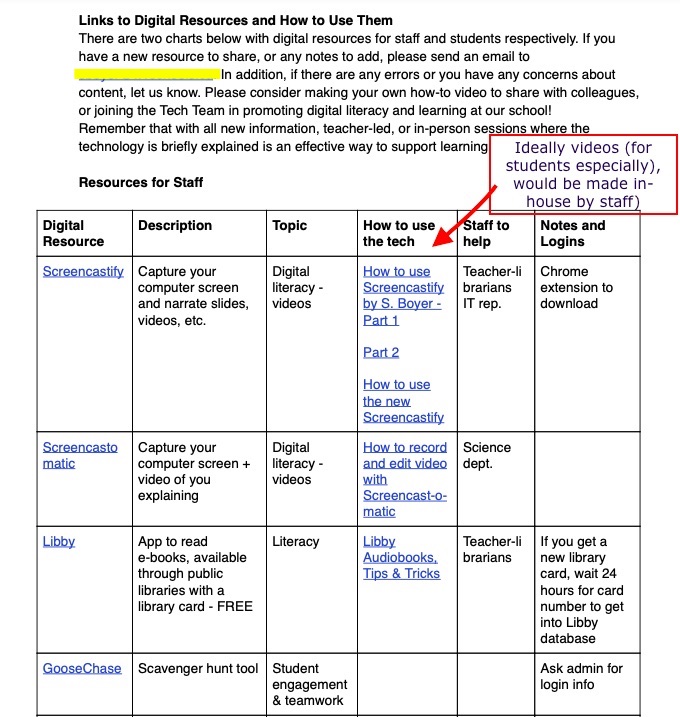
This “Digital Resources and How to Use Them” document includes hyperlinks to resources, notes and videos on how to use them, login information, course connections, etc. It also has a section “Staff to help”, which would have either departments or specific names of staff members who want to share their technical knowledge with others. In a school with over 100 staff members, having an individual person you can email for help is very useful. I would happily attach my name to any technology I know and use! The idea would be to introduce this at a staff meeting, and send out a survey to teachers to find out a) areas of ICT need; b) staff who would be willing to put their names down to support others with particular resources. In Debra E. Kachel’s “Advocating for Collaboration”, one of her suggestions in implementing strong collaboration is to “identify allies” that can help bring your vision for collaboration to life (49); it is important to find like-minded people who want to be role models for ICT in the school.
Collaboration can be challenging due to time constraints and inter-personal issues, but given that “build[ing] relationships with others to pose and solve problems collaboratively and cross-culturally” is another NCTE 21st century literacy, it is a skill that needs flexing, just like learning new ICT (Loc 178). Otis Kriegel in “The Genius Next Door” aptly states when it comes to teaching, “isolation kills innovation” (45), noting that “one of our greatest resources [is] our colleagues” (45). Asking for guidance or observing another teacher’s lesson-delivery does not “show weakness – it simply indicates that you are growing, changing, and looking to improve” (45). And we all know lifelong learning is the ultimate legacy to pass on to our students.
Furthermore, Carla Thomas McClure writes about “The Benefits of Teacher Collaboration” and explains that “[s]chool leaders who foster collaboration among novice and veteran teachers can improve teacher retention and teacher satisfaction […] They have found that new teachers seem more likely to stay in schools [where] all teachers share responsibility for student success” (82). Those first years in the teaching profession are overwhelming, and getting support from other teachers is key to happiness and success. Sharing an easy-to-access document, where several educators are collaborating on best digital resources and practices, is one way to support new teachers. One step further is for experienced staff members to reach out to new teachers, share ICT expertise, and to start building “strong collegial relationships” (82). Personally, during remote learning in Spring 2020, one of my saving graces was collaborating with colleagues for curriculum delivery and tech support.
We often have staff members who present on ICT use in their classrooms, but like many professional development moments, that information is written down and may not translate to classroom teaching. Like Elena Aguilar notes in “10 Tips for Delivering Awesome Professional Development”, acquiring new skills from pro-d requires “a whole lot of practice”, which staff meetings typically don’t allow for. At times, examples of technology use are anecdotal as you catch up with a colleague in the hallway on your break, and these stories get lost amid the mental chaos of returning to the classroom. With a central, fluid document, we could add these resources to the central bank of ICT use in the school, and educators could access links at a more suitable time.
Moreover, teachers could make how-to videos to post to the document. In this way, staff are sharing knowledge widely, and the video itself could be enough for a colleague to figure out the technology on their own. I understand there are hundreds of how-to videos on technology out there, but this way it’s created and vetted by staff in your school (or district); it is much easier than having to find a video on your own, only to realize 5-10 minutes in that it’s not answering your particular technology question. Likewise, if you had questions about the how-to video, it’s easy to get an answer since the creator is on your staff! As part of my digital artifact, I will be demonstrating how to use Screencastify; although I am somewhat comfortable with the technology, I have never made a how-to video, and certainly not one with me visually recorded along with it! Having the ability to overcome fear and create/try new things is important to model if you want other people to do the same.
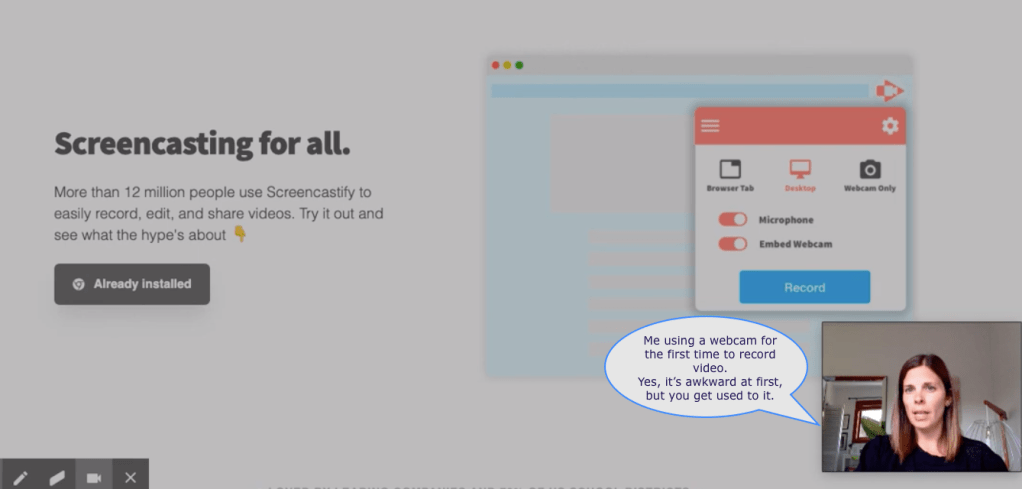
Since I don’t currently have the unlimited version of Screencastify, my how-to video is in two parts (the free version cuts off after 5-minutes). I also made this tutorial using the technology I wanted to demonstrate, which presented it’s own challenges, but I worked around them using previous technical knowledge. Note the big time-difference between videos 1 and 2 – I had recorded Part 2 previously, but wanted to streamline the video for clarity after reviewing it.
Part 1: https://drive.google.com/file/d/1euJALj-maoSsBjkDa__tg9_hSGUE8LRZ/view
Part 2: https://drive.google.com/file/d/1u5dFV_3yjogYmn7kGy6TYV2ErhJ-Vd-D/view
Hopefully, seeing this would inspire other staff members to create their own how-to videos.
I would take this staff collaboration further by gauging interest in lunch-and-learns about implementing new technologies in the classroom. This could be part of the previously mentioned survey, taken twice a year, where staff could volunteer to help lead sessions on particular ICT topics. Getting administration on board to provide lunch is a great way to make staff feel that their time is appreciated and recognized by other leaders in the school. Monthly would be an easy way to organize these sessions, but realistically, 5-6 sessions per year would be more feasible considering the value of teacher prep time.
Finally, this “Digital Resources and How to Use Them” digital artifact includes a Student section with links to educational websites and apps. This could be made available to students either at the school-level or via individual teachers (or both), who would share the document on Classroom, tailoring it if necessary to that particular course. Perhaps teachers might be inspired to come up with their own central document with links to digital resources that students can use throughout the year.
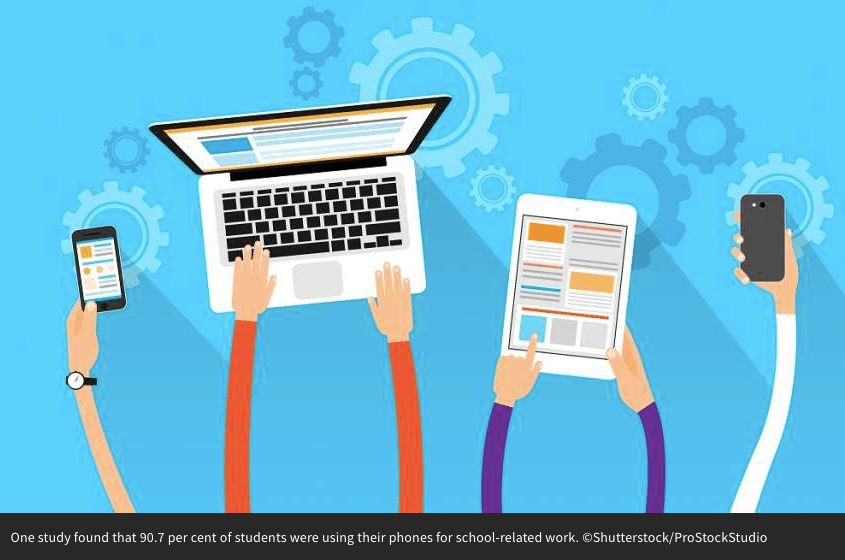
Related to this, I would like to dispel some of the myths around the notion that “smartphones are evil”, highlighting their value as an educational tool. In Why School, Will Richardson laments the fact that for his teenage son and his friends, “[…] school is the only place in their lives where they can’t use the technology they carry around in their pockets and backpacks to answer questions” (Loc 326). The smartphone, when used properly, is an easy-to-access tool for students who either do not have another device; or for students who aren’t always organized enough to remember their device, and/or have it charged for class time. Also, as observers of high school students, we know “that younger people are more likely to read on a mobile device than older people” (17). This goes back to my earlier argument that we need to be teaching in the current digital world students are accustomed to, and that we must model technology in a way that reflects digital literacy for the 21st century. Mobile devices have been shown to improve literacy in developing countries through programs like Library For All and UNESCO’S Worldreader, and are likely to have a similar impact here on more than one type of literacy.
At times, using your own smartphone to highlight professional learning tools demonstrates to students a workplace phone etiquette that they should be adhering to both in the classroom and in the workforce. Treating smartphones as a tool rather than a distraction is a positive attitude we can pass along to learners. In her article on the possibility of cell phone bans in schools, Katie Martin asks: “[…] if we (both parents and educators) aren’t teaching this generation how to navigate this world, who is? Where do they learn to manage their devices and on-demand access and balance them with key social skills including having conversations, being kind, collaboration, managing impulsivity, prioritizing people, interactions, the things that make us special and human?” Giving students a list of resources, such as review and time management apps, and asking for their input, shows that their knowledge of technology is respected and welcome in the classroom. Researching apps for a particular subject or skill-set would also make a great inquiry project for middle- and high-school students. They could present their findings as part of a Tech Week, hosted by the school library, sharing the pros and cons of various digital learning resources. In the end, it should be at the teacher’s discretion to decide if a smartphone will be part of classroom learning, and the comfort level will differentiate greatly between educators.
When it comes to implementation of sharing digital resources, there are a few concerns. First are regulations around privacy. If students are sharing their information online, it needs to be done in a secure environment if it is a school-promoted technology. For example, at the beginning of remote learning in March 2020, our district said ‘no’ to Zoom as a platform for video chats with students, because it did not meet Canadian security standards. Likewise, teachers in our district are not meant to include blogging as part of their courses, since anyone can have access to this type of online data. Therefore, the resource links shared at the school-level or with students would need to be approved by school administrators, which could cause a delay in sharing resources. However, this doesn’t mean you should avoid trying new technologies, just that you need to use discretion and critical thinking before using them in the classroom. West Vancouver Schools came up with a set of questions to consider when using public websites or videos to support learning:
| Does the website require students to log in or create an account? | If yes, do not use. | If no, move to the next question. |
| Is the website grade appropriate? | If no, do not use. | If yes, move to next question. |
| Is the website safe? Is it free of advertisements or other aspects that are inappropriate? | If no, do not use. | If yes, move to next question. |
| Is the website easily accessible to all students? For example, is it free of streaming videos that may be difficult for some families to access? | If no, do not use. | If yes, move to the next question. |
| Is the website education specific? | If no, do not use. | If yes, consider using it. |
To get the digital resources collaboration started at the school-level, I would take the following steps:
- Introduce the idea at a staff meeting or pro-d, modeling a short video on how to use a digital resource such as Screencastify.
- Send out a survey to find Strengths, Weaknesses, Opportunities, Threats (SWOT).
- Create a team of teachers and administration to help manage and deliver tech education to the school, and possible other, communities.
- Follow up with staff to see if collaboration has been effective in learning new ICT; reflect on practices in staff meetings or surveys throughout the year.
- Create opportunities for staff and students to share good digital resources in the school community.
For number 3, this could be done via Google Classroom, where teachers who are interested can join the Classroom and share information and resources through the Classroom feed. I noticed this used by a teacher named Mr. Vacca in this video tutorial. We already communicate effectively with students via Classroom, so why not staff?
Our colleagues are our greatest, and often untapped resource; contributing to a shared list of ICT for the classroom is one way to capitalize on that knowledge, while connecting one-on-one with other teachers to try new ICT creates collegial bonds and enhances learning for both staff and students. Trial and error are a big part of acquiring new skills, so modeling this humanity in staff meetings and in the classroom is important. Furthermore, students also have a bank of technical knowledge when it comes to using technology, in particular smartphones. Getting them involved in vetting resources, and allowing them to use their smartphones as an educational tool, will create a stronger tech environment that reflects modern literacies.
Links to Digital Resources and How to Use Them – Google Doc for Staff Collaboration
Resources for Staff (Work-in-progress)
| Digital Resource | Description | Topic | How to use the tech | Staff to help | Notes and Logins |
| Screencastify | Capture your computer screen and narrate slides, videos, etc. | Digital literacy – videos | How to use Screencastify by S. Boyer – Part 1 Part 2 How to use the new Screencastify | Teacher-librarian IT rep. | Chrome extension to download |
| Screencast-o-matic | Capture your computer screen + video of you explaining | Digital literacy – videos | How to record and edit video with Screencast-o-matic | Science dept. | |
| Libby | App to read e-books, available through public libraries with a library card – FREE | Literacy | Libby Audiobooks, Tips & Tricks | Teacher-librarian | If you get a new library card, wait 24 hours for card number to get into Libby database |
| GooseChase | Scavenger hunt tool | Student engagement & teamwork | Paid resource Ask admin for login info | ||
| Kahoot | Content review toolBasic version is free | Student engagement | Create your own login | ||
| Google Meet | Video conferencing | Teaching, student engagement | Make Google Meet better with 5 Chrome extensions | ||
| Explain Everything | Explain Everything Tutorial | Has anyone used this or another whiteboard platform before? | |||
| TinyScanner App | Convert files to PDF from smartphone | Sharing resources digitally | Worth the small cost to upgrade to Pro version | ||
| Turnitin.com | Originality database that checks for plagiarism | Digital citizenship | Paid database | ||
| MyEd | Web platform for attendance, grade entry, emailing students and parents | Professional data management | School User Resources | Vice-principal; dept. coordinators |
Resources for Students (Work-in-progress)
Remember that with all new information, teacher-led, or in-person sessions where the technology is briefly explained is an effective way to support learning.
| Digital Resource | Description | Topic | How to use the tech | Staff to help | Notes and Logins |
| G-Suite Google Classroom Google Meet | Classroom webpage to organize resources, create quizzes, collect assignments and give feedback. | Digital literacy | Google Classroom TutorialGoogle Meet Tutorial The Beginner’s Guide to Google Docs (with formatting tips) | IT rep. | Login is typical student login and password |
| Time management apps Focus Keeper Zen Screen Moment Exam Countdown Lite | Apps that can be downloaded to your smartphone to manage time | Healthy media balance | Could be useful tools for Careers 10 in discussion of healthy digital habits | ||
| Libby | App to read e-books, available through public libraries with a library card – FREE | Literacy | Libby Audiobooks, Tips & Tricks | Teacher-librarians | If you get a new library card, wait 24 hours for card number to get into Libby database |
| StudyBlue Flashcards & Quizzes GoConqr | Review tools | Study techniques – on-the-go; web-based | |||
| Noodle Tools | Teacher-librarians | Book library time to set up student accounts |
Works Cited
Aguilar, Elena. “10 Tips for Delivering Awesome Professional Development.” Edutopia, George Lucas Educational Foundation, 18 Sept. 2014, http://www.edutopia.org/blog/10-tips-delivering-awesome-professional-development-elena-aguilar. Accessed 2 Aug. 2020.
Castaño-Muñoz, Jonatan, et al. “Who is taking MOOCs for teachers’ professional development on the use of ICT? A cross-sectional study from Spain, Technology, Pedagogy and Education.” Technology, Pedagogy and Education, vol. 27, no. 5, 2018, pp. 607-24, DOI:10.1080/1475939X.2018.1528997. Accessed 2 Aug. 2020.
Daniels, Kristin. “Empowering the teacher technophobe: Kristin Daniels at TEDxBurnsvilleED.” YouTube, uploaded by TEDx Talks, 6 Nov. 2013, http://www.youtube.com/watch?v=puiNcIFJTCU. Accessed 2 Aug. 2020.
Kachel, Debra E. “Advocating for Collaboration.” Teacher Librarian, vol. 46, no. 4, Apr. 2019, pp. 48-51, antiochlis.libguides.com/ld.php?content_id=49265318. Accessed 2 Aug. 2020.
Kriegel, Otis. “The Genius Next Door.” Scholastic Teacher, vol. 125, no. 3, Winter 2015, p. 45 Accessed 9 Aug. 2020.
Martin, Katie L. “Let’s Talk About Cell Phone Bans: Should We Limit Access or Teach Responsibility?” WordPress, 25 March 2019. Accessed 23 July 2020. https://katielmartin.com/2019/03/25/lets-talk-about-cell-phone-bans-should-we-limit-access-or-teach-responsibility/
McClure, Carla Thomas. “The Benefits of Teacher Collaboration.” District Administration, vol. 44, no. 10, Sept. 2008, pp. 82–83. EBSCOhost, search.ebscohost.com/login.aspx?direct=true&db=aph&AN=34207153&site=ehost-live&scope=site.
Richardson, Will. Why School?: How Education Must Change When Learning and Information Are Everywhere. Kindle ed., 2012.
West Vancouver Schools. “Digital Resources Overview.” West Vancouver Schools, Scholantis Portal, inside45.sd45.bc.ca/modernization/Pages/Digital-Resources-Overview.aspx#/=. Accessed 10 Aug. 2020.
 LIBE Diploma Blog 2020
Wow, Sophie! Incredible work! It was a pleasure to read this well-researched and well-justified rationale for your digital artifact. I found myself nodding along many times, and when I take on a TL role, I would like to seriously consider using Screencastify to record a few tutorials on citation tools or research databases that we can then embed in our Virtual Learning Commons. In fact, I found Darcy’s regular updates via video very useful, and (as you mention in your video) this might be a helpful option if we need to return to remote learning at some point. I got into the habit of doing live talks/discussions with my students via MS Teams, which involved screensharing, but it became challenging trying to manage times for all my different blocks. I had also contemplated creating a collaborative list of ICT for the classroom that my colleagues could contribute to, so I think you have provided me with an excellent template! Thank you and enjoy the rest of your summer!
LikeLike